Home » Android » Detailed guide to freeing up space on your Android phone and keeping it running smoothly
Detailed guide to freeing up space on your Android phone and keeping it running smoothly.
Organize photos, apps, and files to prevent memory from filling up.
Use tools like Google Files and cloud backups.
Pay attention to the cache and the downloads and messaging folders.
Limited storage is one of the most common headaches for those of us who use Android phones daily. You've surely encountered the dreaded "storage full" message at some point, just when you most needed to install a new app or record an important video. Although current smartphones tend to come with increasingly larger capacities, constant use, file downloads, the accumulation of photos, and the installation of multiple applications eventually take their toll and fill up the memory faster than many of us think.
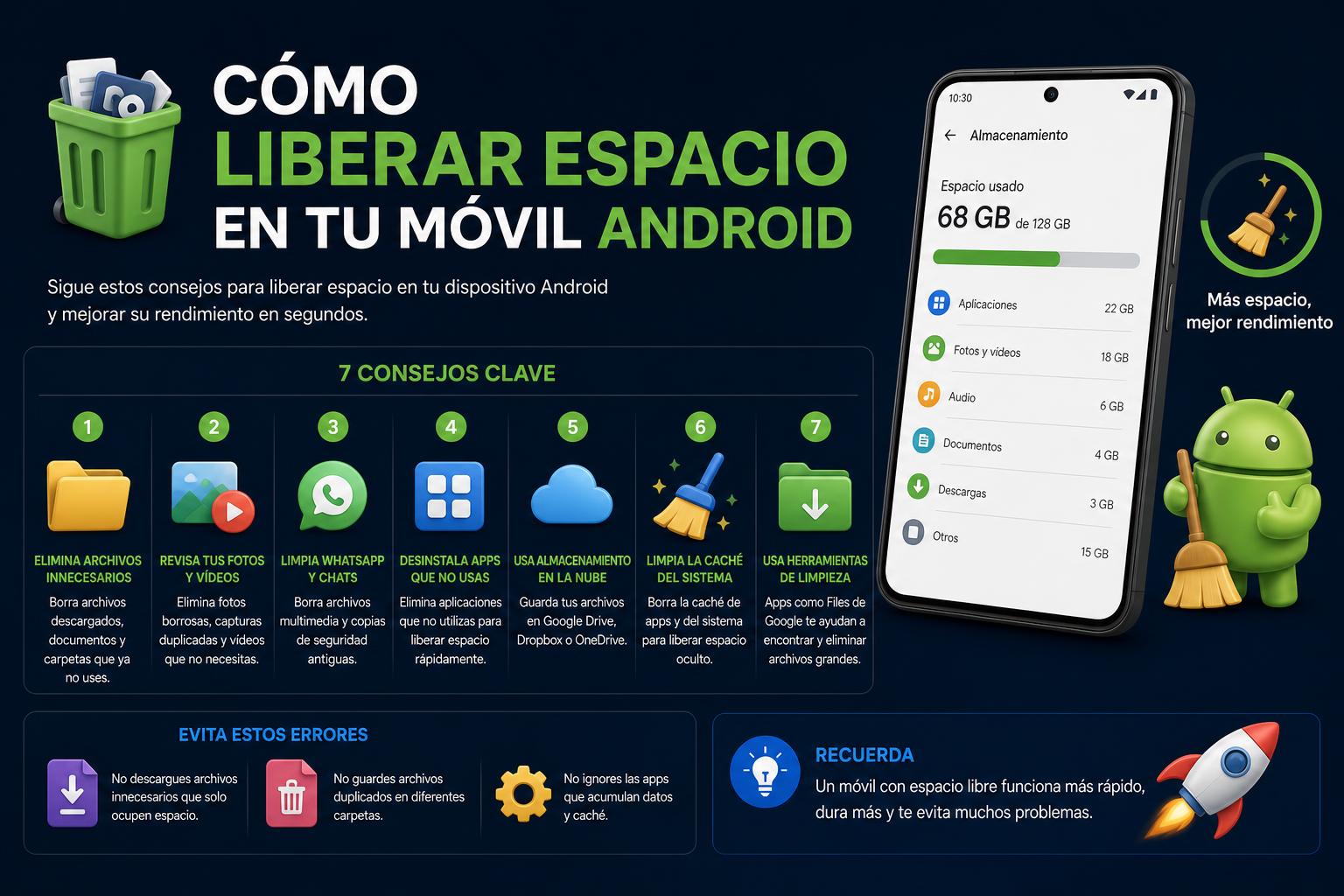
There's no need to resign yourself to your situation or buy a new phone at the first sign of trouble. If you know how to identify and delete unnecessary files, move data correctly, and use certain tools, you can recover a significant amount of space on your Android device without losing your photos, favorite apps, or important files. Below, we'll detail, step by step and with some lesser-known tricks, everything you need to do to free up space and make your Android phone run faster and without storage problems.
Most users don't realize the amount of files and data that accumulate daily. Photos sent via WhatsApp or Telegram, downloaded documents, temporary videos from social media, and app caches take up far more space than we imagine . Added to this is the habit of installing apps "just in case" and never uninstalling them, as well as the presence of games or system apps pre-installed by manufacturers, which sometimes can't be easily removed.
Review and remove apps you don't use
The simplest and most effective step is to uninstall apps you haven't used in a while . They not only take up memory space, but often run in the background, consuming resources.
Enter Settings > ApplicationsHere you will see a list of all installed apps and, in many Android versions, the space each one occupies.
Select the app you want to delete and tap on "Uninstall".
If you prefer to do it faster, open the Google Play Storetap on your avatar top right and select Manage apps and deviceFrom there you can delete several apps at once and see how much space you will free up after each uninstallation.
Remember that if you ever need it, you can reinstall any app from Google Play without having to buy it again if you already had it.
Clear the cache and delete app data
Even if you're hesitant to delete certain apps "just in case," you can always clear their data and cache. The cache consists of temporary files that help apps run a bit faster, but they can accumulate to tens or even hundreds of megabytes over time . Clearing it frees up that memory without losing important personal information.
head back to Settings > ApplicationsSelect the desired app and tap on "Storage"You will see two options: Clear cache y Delete data.
"Clear cache" It only deletes temporary files. "Delete data" It returns the app to its original state after installation (forgets accounts, progress, settings...).
Keep in mind that if you clear the cache of WhatsApp, Instagram, and social media, the next time you access them, it may take a little longer to open, but you won't lose your messages or files.
Do this regularly to save space. If you use certain apps a lot (like browsers or video platforms), you'll be surprised how much memory they allow you to free up.
Pay attention to your downloads and documents folder.
The "Downloads" folder often contains long-forgotten files : PDFs you only looked at once, group photos, presentations sent to you by email, and so on. No one usually remembers to clean this folder, but simply opening any file explorer or the "Files" app included on almost all Android devices will allow you to find and delete what you no longer need.
Open your File Browser (varies depending on the brand: Google Files, My Explorer, My Files…).
Locate the section Downloads o Downloads and carefully review all the content. Mark and delete any unnecessary or duplicate files.
Repeat this check from time to time, especially if you tend to receive many attachments via email or messaging apps.
Photos and videos: delete, move to the cloud, or transfer to your computer
Photos and videos are the main culprits behind quickly filling up memory. These days, mobile phone cameras are so high-quality that a single photo can take up several megabytes; recording in 4K or using burst mode multiplies this figure. To avoid losing memories without filling up storage, there are several strategies:
Find and delete duplicate photos and videosThere are apps like Remo Duplicate Photos Remover that detect repeated images and videos and make it easy for you to choose which ones to save and which ones to permanently delete, saving a lot of time and memory.
Move photos and videos to the cloudGoogle Photos (you can check their official website at photos.google.comThis feature allows you to create an automatic backup and then delete the local copy from your phone. This way you can recover a large amount of megabytes or gigabytes.
Transfer large files to a computer Transfer the files via USB cable, and then delete them from your phone. You'll keep the memories without being limited by the device's storage capacity.
If you prefer, you can combine strategies: delete what you don't want (or is repeated) and save the rest in the cloud or on your PC.
Multimedia file management and "gluttonous" apps like WhatsApp
WhatsApp and Telegram are among the apps that contribute most to filling up your storage, because every photo, video, and audio you receive or send ends up saved in specific folders from which they are rarely automatically deleted.
Open your File Browser Then navigate to the "WhatsApp" > "Media" folder. Here you'll find all your received and sent files. You can delete items you no longer need, either in bulk or selectively.
Some mobiles have Recycle BinAfter deleting the item, make sure to empty that trash can too to really free up space.
Do the same with folders from other messaging apps like Telegram, which stores received multimedia and documents until you manually delete them.
Take advantage of applications that optimize storage
Tools like Google Files are designed to help you free up space easily and without technical complications. This app automatically analyzes your storage and identifies unnecessary files (junk files, duplicates, unused apps, photos already uploaded to the cloud, etc.).
It alerts you with smart recommendations and allows you to delete everything with a single tap, including large forgotten files, caches, local copies of images already uploaded to Google Photos, or files that you already have duplicated.
It includes tools to delete specific content from apps like WhatsApp, Telegram, and similar apps, so you don't have to search through each folder yourself.
These tools are usually free and very easy to use. They will also help you identify what's taking up the most space so you can make better decisions about what to delete.
Take advantage of the microSD card to gain extra space
If your Android phone has a microSD card slot, you can move apps and large files from internal storage to the external card . Not all apps can be moved (system apps and some third-party apps prevent it), but many games, photo, video, and multimedia apps can.
Go to Settings > ApplicationsChoose the app, enter Storage and click on "Change" where the application data is stored.
Select the SD card and confirm the change.
Remember that if you remove the SD card, the apps and data on it will no longer be available unless you reinsert it.
Remove content downloaded from other sources
Music, movies, TV episodes, and other downloaded media files (especially from platforms like YouTube Music, Google TV, Netflix, etc.) take up a lot of space. If you no longer need them downloaded, delete them from within the application itself.
Open the corresponding app, look in "My Downloads" or a similar section, and delete the files manually. On Google Play they are usually located in Menu > Settings > Manage downloads.
If the content is downloaded from other apps, also check the corresponding internal folders from the file explorer.
Advanced trick: Disable system apps to free up gigabytes
Some recent mobile phones have hidden system processes that can take up several GB of storage, even though most users don't use them. A recent example is AICore , the AI processing system integrated into Android, which can occupy up to 7 GB on some devices.
To disable AICore and free up that extra space: go to Settings > Apps > See all appsUse the three-dot menu or the side menu to "Display system", search "AICore" and tap "Disable". Then, go back to the side menu and choose "Uninstall updates" to recover even more memory.
The app isn't deleted, it's just disabled. You can reactivate it in the future if you ever need its advanced features.
These types of adjustments are only recommended if you know exactly what you're doing and don't rely on features like the AI voice recorder, automatic summaries, etc. Always consult specific information for your model before disabling system apps.
Expand your storage space by using the cloud.
Beyond direct solutions, the cloud is your greatest ally to forget about space problems:
Services like Google Photos, Dropbox, OneDrive o Google Drive They allow you to store all your information (images, videos, documents…) without physical limits except for the contracted quota, so you can delete from your mobile what you have already saved in the cloud and consult it whenever you want from any device.
This not only saves space, but also improves the security of your files. If you lose or change phones, you won't lose important memories or documents.
Deep cleaning: residual files and "impossible apps"
Some manufacturer apps or pre-installed games don't allow for easy uninstallation; however, you can disable them and delete their data to stop them from taking up space. In extreme cases, or if you have specific technical knowledge, you can use advanced utilities like ADB. Alternatively, go to Settings > Apps , select the app, and tap " Disable " to stop it from consuming resources and clear its data.
To keep your storage clean on a daily basis, regularly check your downloads, uninstall apps you no longer use, and clear your cache periodically. By following these tips, you can effectively manage the space on your Android phone and avoid "storage full" messages, allowing for smoother performance and greater peace of mind.