Home » Software » Advanced and complete guide to creating a project in Microsoft Project step by step
Advanced and complete guide to creating a project in Microsoft Project step by step
Gain a deep understanding of the key functionalities of Microsoft Project to optimize the management and planning of any initiative, whether simple or highly complex.
Learn to combine resources, schedules, and tasks effectively to ensure that goals and deadlines are met, improving team efficiency.
Proactively monitor and adjust the progress of your projects, implementing best practices for tracking, evaluation, and continuous improvement.
Microsoft Project is a professional project management solution designed to plan, execute, control, and monitor all phases of a project. You can find the official product features and different versions on its official website . Since its initial release in 1984, this tool has evolved into a benchmark in diverse sectors such as construction, technology, consulting, marketing, and more.
Its strength lies in its ability to:
Visualize projects using Gantt chartsThis simplifies understanding the schedule, task sequencing, and identifying dependencies and critical times.
Manage resources (people, materials and costs) and tasks in a centralized and efficient manner.
Control timelines and adapt to changes in real timeadjusting delivery dates, activity duration and resource allocation according to actual progress and unforeseen events.
Integrate with Office 365, SharePoint, and other Microsoft applicationsimproving collaboration between remote and distributed teams.
The learning curve can be steep due to its extensive functionality, but once mastered, it facilitates complete control over projects, increasing the likelihood of success and efficiency. There are alternatives available, which you can explore here , but none match its integration with the Microsoft ecosystem.
Microsoft Project is available in several versions to suit the needs of businesses and professionals:
Project Standard 2021: Perpetual license for local use, approximate price of $719,99 USD.
Project Professional 2021: More advanced version with team integration, approximately $1.409,99 USD per license.
Cloud plans:
Project Plan 1: Starting at $10 USD per user/month.
Project Plan 3: Starting at $30 USD per user/month.
Project Plan 5: Starting at $55 USD per user/month.
The choice of license varies depending on the type of project and the team's integration and collaboration needs. You can find more information on the official Microsoft Project website.
Technical requirements and installation of Microsoft Project
Before you begin, make sure you meet the minimum system requirements:
En Windows: Windows 10 or higher, minimum 4 GB of RAM.
En Mac: system compatible with Microsoft Office (in this case compatible only with the cloud version Project for the Web).
The installation process involves downloading the file from your Microsoft account, following the wizard's steps, logging in, and configuring the software's initial options.
Essential steps to create a project in Microsoft Project
Below, I detail the process step by step, integrating best practices and expert recommendations:
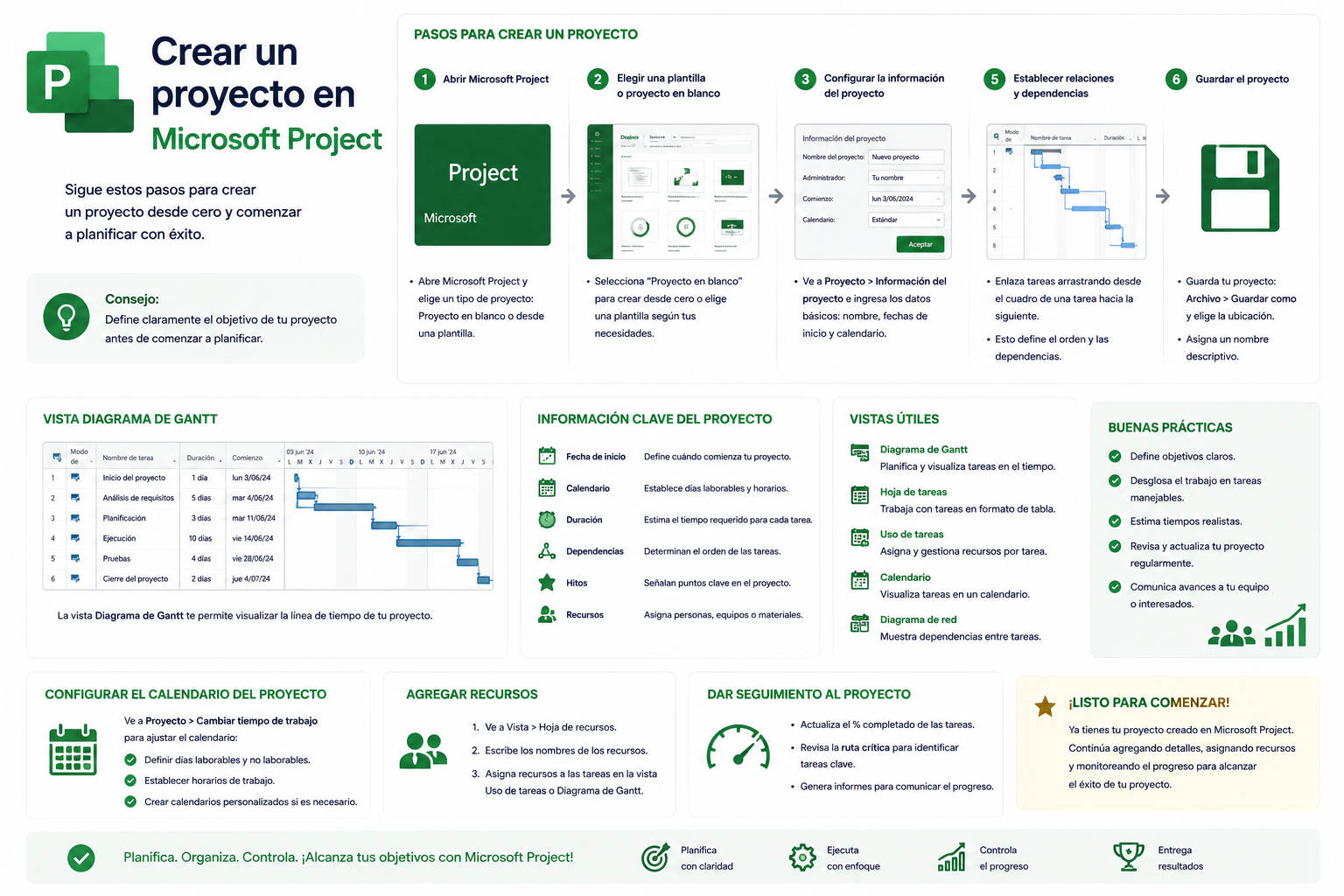
1. Define the scope and objectives of the project
The first step is always to be clear about what you want to achieve. A poorly defined scope can lead to deviations, increased costs, and endless deadlines.
Question: What is the project expected to achieve?
Expected results: List the key deliverables.
Estimated resources: It includes personnel, materials, and available budget.
This initial analysis will help you lay the foundation for realistic and focused planning.
2. Create the project in Microsoft Project
Open Microsoft Project and select 'New project'.
Choose 'Blank project' If you want to start from scratch, or choose one of the templates offered by the software.
Enter the project name giving it a clear title, aligned with the main objective.
Configure the start and end dates (or just the start date if you don't know the end date yet):
Click on File > Project Information.
Indicate if you want to program from the start date o finish date.
Add the corresponding date so that all future deadlines are correctly affected.
You can start from scratch or reuse structures and data from other projects if you have them. Project also allows you to import information from Excel, Word, or SharePoint. To better understand how to manage compatible files, you can consult what Rufus is.
3. Add tasks and subtasks
Project management begins with the structured creation of a task list. Don't limit yourself to a generic block; it's best to divide tasks into manageable subtasks.
Main tasks: It establishes all the major phases of the project.
Subtasks: Break down each phase into specific and measurable activities.
Estimated duration: Add to each task the time you think it will take to complete it.
You can add tasks manually, copy and paste from applications like Word or Excel (Project maintains the hierarchy of tasks and subtasks), or import entire lists.
Remember: To view all the details, activate the 'Project Summary Task' from the Gantt chart view by accessing the 'Format' menu.
4. Configure dependencies between tasks
Not all tasks can be executed simultaneously. Defining dependencies is essential to reflect the actual workflow.
FS (Finish to Start): One task must end before the next one can begin.
SS (Start to Start): Two tasks can start at the same time.
FF (Finish to Finish): Two tasks must finish at the same time.
SF (Start to Finish): Less common, but useful in projects with reverse synchronization.
These relationships ensure that Project automatically adjusts deadlines when a task changes and prevent planning errors. If you want to learn more about managing dependencies, check out Trello , although for advanced Microsoft project management, it's best to consult specialized resources.
5. Introduction to the use of the Gantt chart
The Gantt chart is the primary visual tool for organizing and controlling your project. In the Gantt chart view, you can see:
All tasks and subtasks in chronological order
Duration, start and end of each activity
Dependencies and relationships
From here you can also modify dates, adjust tasks by dragging bars, and observe the impact of changes in real time.
6. Allocate resources to tasks
Resource optimization is one of the critical aspects of any project. Microsoft Project allows you to quickly allocate:
Human Resources: Team members with their roles and capabilities.
Material resources: Equipment, supplies, software, etc.
Economic resources (costs): Budgets, salaries, materials, etc.
To do this, add all resources in the 'Resources' tab, assign them to the necessary tasks, and define their schedules and limitations (holidays, working days, etc.). If you want to delve deeper into resource management, check out what No-code is for automating processes and optimizing resources in your projects.
This enables Project to automatically calculate workload, preventing over-allocation and allowing you to visualize bottlenecks to efficiently redistribute tasks.
7. Establish milestones and baseline
Milestones are critical points that mark the completion of important phases or events within the project. Add them as zero-duration tasks to identify checkpoints.
The baseline is an initial snapshot of the plan, allowing you to compare actual progress against the plan at any time. To create it, select "Set Baseline" from the project tools menu.
This way, as the project progresses, you will be able to easily detect deviations and react in time.
8. Advanced use of calendars and exceptions
Each resource can have its own work schedule:
Weekdays and weekends
Holidays, vacations or special days
Individual schedules for members or teams
This is essential for realistic allocation and planning, avoiding unnecessary delays.
9. Save, export, and share the project
At any time, you can save your work, rename the file, and add more properties. Project also allows you to export your project.
In PDF, Excel, XML or image formats for easy sharing with teams outside the Microsoft ecosystem.
SharePoint integration for online and synchronous collaboration.
The option to share and publish the project makes it easier for all team members and management to review it.
Monitoring and controlling progress in Microsoft Project
Once the project has started, regular monitoring is crucial.
Update the schedule and the status of tasks
Periodically review the status of each task.
Modify dates, duration and dependencies when unforeseen events arise.
Closely monitor the critical path to identify tasks that may affect the overall timeline.
Control the costs and resources consumed compared to what was planned.
Keeping the schedule up to date helps anticipate potential delays and readjust the plan to achieve the objectives.
Redistribution of resources and workload
If the workload becomes unbalanced, use the redistribution features to balance it. Microsoft Project visually alerts you to overallocations and makes it easy to fix them by dragging and dropping tasks or adjusting dates.
Advanced visualization and tracking in the dashboard view
In addition to the Gantt chart, Project offers board views (Kanban-style) for organizing tasks by status, priority, or assignee. This functionality is especially useful in agile projects and for teams accustomed to working collaboratively.
Best practices and tips for optimizing management in Microsoft Project
Clearly define objectives and deliverables from the start, avoiding ambiguities.
Break down the work into as many tasks and subtasks as possible. for precise control.
Update the schedule in real time with the changes and advances.
Use milestones and a baseline to compare actual performance against planned performance.
Review the critical path periodically and adjust when necessary.
Bring the team together periodically for status review, lessons learned, and continuous improvements.
Microsoft Project is a tool that allows both an overview of progress and fine detail of each task, facilitating everything from quick decision-making to detailed reports for stakeholders.
Alternatives to Microsoft Project and how to decide which one is right for you
Although Microsoft Project is the market leader, there are several interesting alternatives, especially for those looking for simplicity, web collaboration, or more affordable costs:
Intuitive interface, online management, and easy collaboration. It is often recommended for its ease of use for users who do not require all the advanced features of MS Project.
SmartsheetIdeal for teams that already work with spreadsheets and are looking for Gantt-style visualization and collaboration.
Asana, Monday, WrikeOnline solutions focused on collaboration, dashboard management, and automation.
The choice will depend on the size of the team, desired integration, and available budget.
Examples of Microsoft Project applications in different sectors
Construction: Planning all phases of a project, allocating resources, monitoring progress by milestones, and early detection of delays.
Technology: Software development following agile or waterfall life cycles, integration with other teams, incident management and releases.
Consulting and Marketing: Campaign organization, definition of deliverables, deadline control, and interdepartmental collaboration.
Having a clear example tailored to your sector will help you adapt the most appropriate methodologies and workflows, maximizing the value of the tool.
Advantages and limitations of Microsoft Project
The main advantages include:
Familiar interface for those already working with Office.
Ability to handle everything from small projects to large portfolios.
Advanced reporting systems.
Resource and cost optimization.
Integration with other Microsoft platforms.
Points to improve or take into account:
The learning curve can be significant.
The initial investment is not always within reach of small businesses.
Some advanced features are only available in the premium or paid versions.
Frequently Asked Questions about Microsoft Project
Can MS Project be used in the cloud?
Yes, with Project Plan 1, 3 and 5 you get access to the online and collaborative version.
Is it easy to migrate old projects?
Microsoft Project supports .mpp file migration and allows importing/exporting to/from other popular tools.
What advantages does collaborative work offer?
It facilitates real-time updates, integration with Office 365 workflows, and saves time on internal communication.